
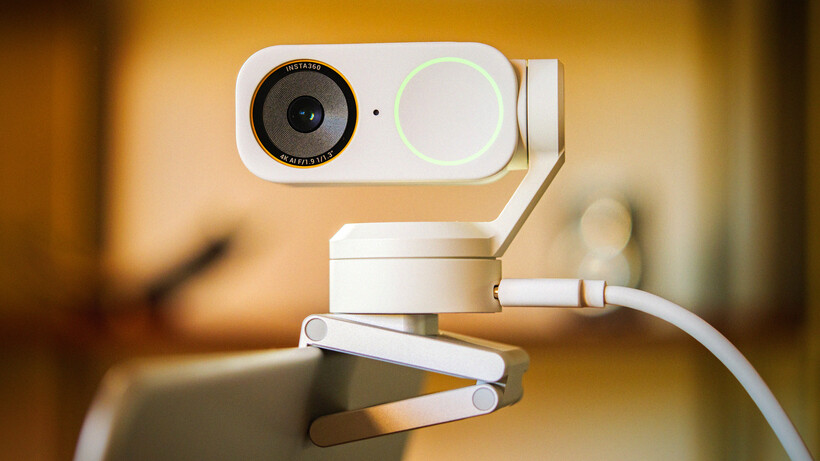

This is a very good-looking webcam that will be better than the camera embedded in your laptop, and the image quality will be good enough for video conferencing and casual streaming. If though you are hoping to use it to record yourself indoors to post later to platforms where the quality will show you might find the heavy compression and image noise rather spoils the look of your films. I'd hoped the audio quality would be better too, but for all the directional modes supplied you are still much better off with a separate mic system - such as the excellent Insta360 Mic Pro, for example. The AI face tracking works well most of the time, and some will find the filters and effects useful, while the new teleprompt feature and the ability to overlay graphics are genuinely positive steps. Use it in a quiet, well-lit room for the best results
Pros

-
 Looks great
 -
New software features work well
-
Effective HDR mode
Cons

-
 Image is over compressed and noisy
 -
Tracking isn't as good as it thinks it is
-
Audio spoiled by enthusiastic noise cancellation

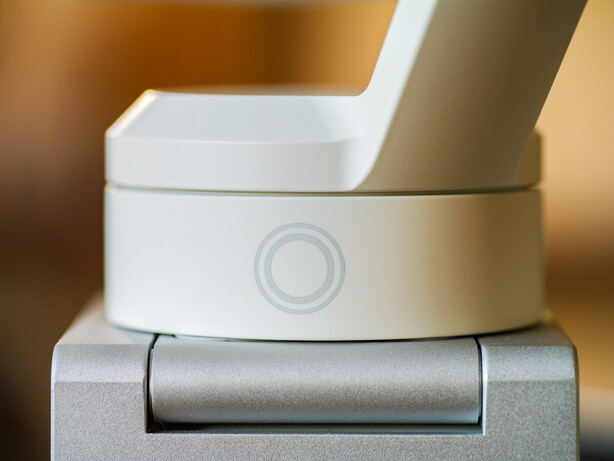
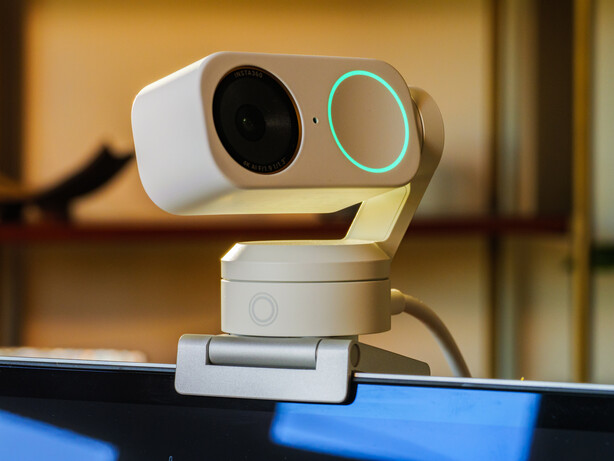
While no one actually sees the camera you are using to film yourself in a video chat or stream I guess the aesthetics of how our kit looks still matters, even if only to us – not everyone wants a plain black webcam. We probably choose the colour and style of our laptop right at the end of the decision-making process, but that doesn’t mean its looks aren’t important. It’s the spec that makes it work the way we want it to, but its the looks that make us fall in love a bit of tech. And with a webcam looks are especially important as we’re going to be looking at it all the while we use it.
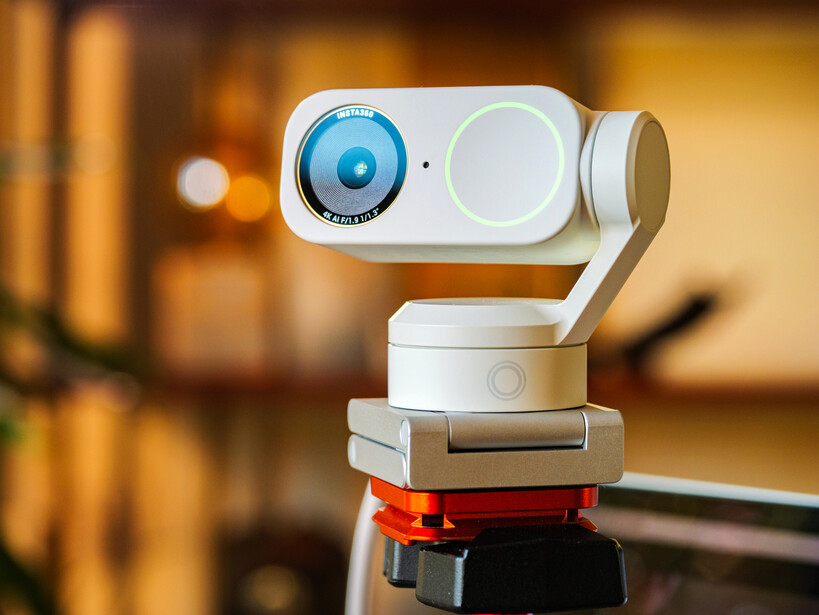
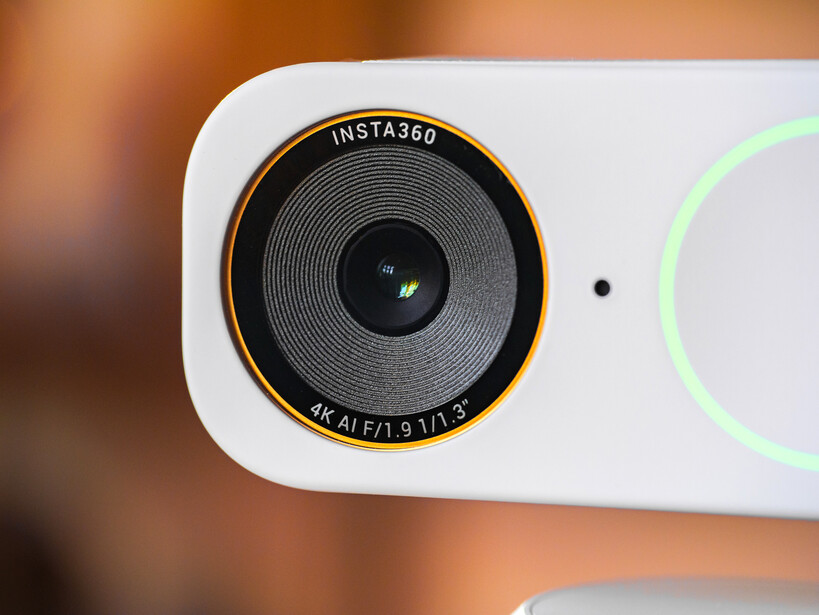
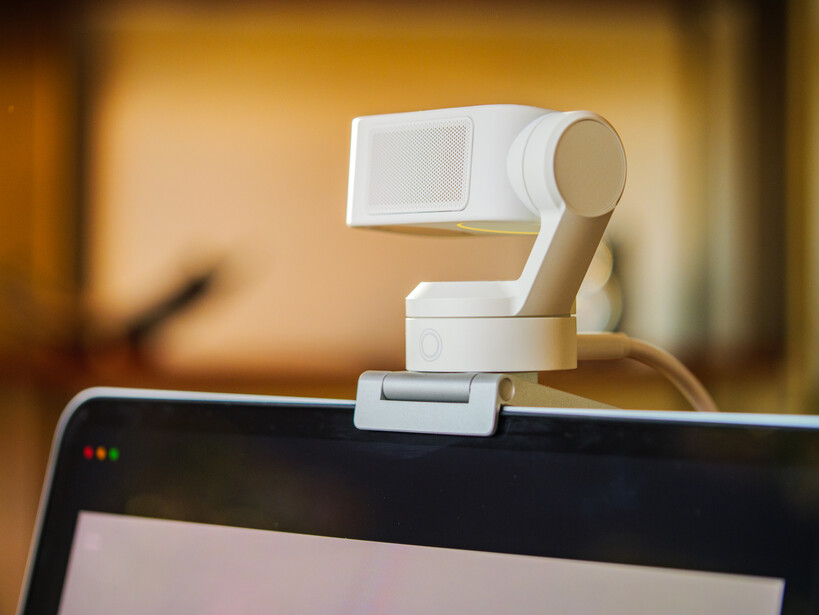
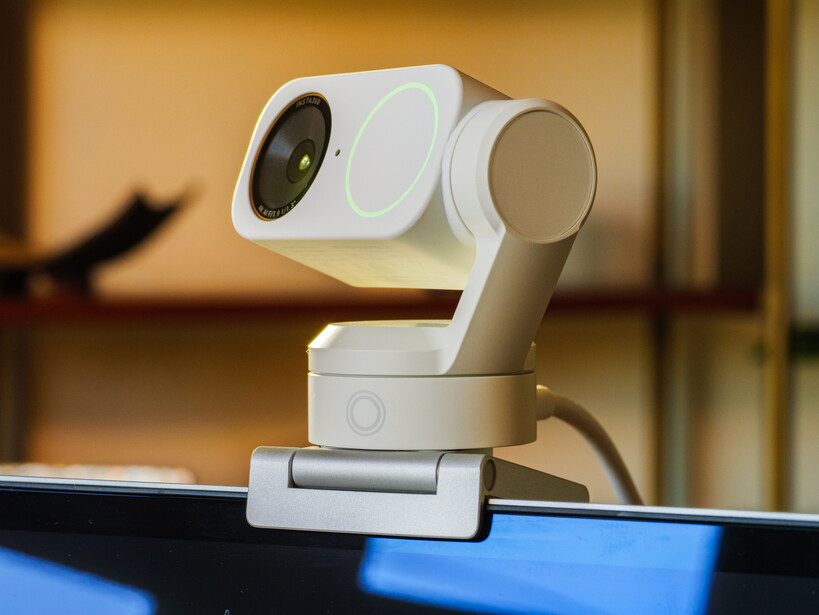
Insta360’s Link 2 Pro isn’t a new webcam as it was launched in the early part of this year, but the Arctic White version is new, as are the additional features that come with it via Insta360’s Link Controller software.
What’s new with the Insta360 Link 2 Pro?
The new features that arrived with this Arctic White version of the Link 2 Pro are all software based and come about through an update to Insta360’s Link Controller application – there’s nothing new in the camera itself. The new features though are pretty helpful and useful, and will be available to anyone with an existing Graphite Black Link 2 Pro just through a software update.
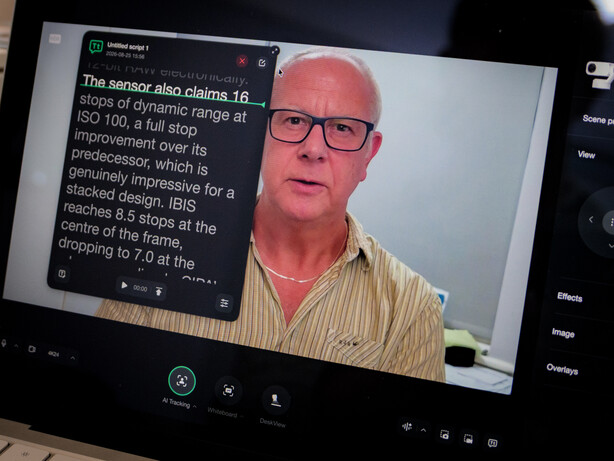
The two new features I was most interested in are the Teleprompter and the Overlay options. Teleprompter does what you’d expect – you load a script in the .txt format to the software and it will appear in a floating window that can be positioned anywhere on the screen. As we read the script we scroll with our mouse or track pad to manually run through the script, or set the pace we’d like and have the software scroll for us. There’s an optional marker line to help us remain in the right place. It’s a very nice feature, and many users will find it useful. The next step surely will be the software using the mic to listen to where you are in the script and scroll automatically as we read. That must be possible.
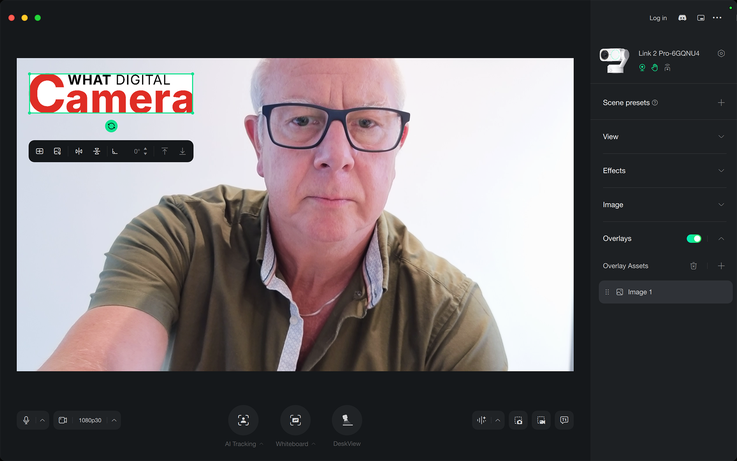
The Overlay feature allows us to import text, graphics and images that can be shown alongside whatever the camera is filming – so we can easily add logos, graphs, and pictures of products etc without needing third party software like OBS, for example. It works easily and we can position whatever we’ve added quickly by dragging it around. There are no opacity controls, so your overlay will show at 100% all the time.
Those using the Link 2 Pro for meetings will like the option to drop a marker that then captures the moments leading up to that important moment in an AI generated summary. We already use AI to transcribe entire meetings and to create wider summaries (if we have credits in our Insta360 account) but this is a more focused highlighter.
Another useful addition is the compatibility with Elgato’s Stream Deck control pad, which can now control the camera and our image settings live while recording is taking place.
Insta360 Link 2 Pro Features
The Insta360 Link 2 Pro is a webcam mounted on a 2-axis gimbal that can use tracking software to follow the person in the frame and which can be controlled by the subject using hand gestures. The camera is equipped with a 1/1.3in sensor that features phase detection autofocus and dual native ISO settings to help create clean images in low light situations. Insta360 says the significance of the PDAF system is not only that faces will be tracked and kept in focus but, perhaps more importantly, when the subject holds something up to the camera for the viewers to see the AF system will detect that and shift focus away from the face and on to the item being shown.
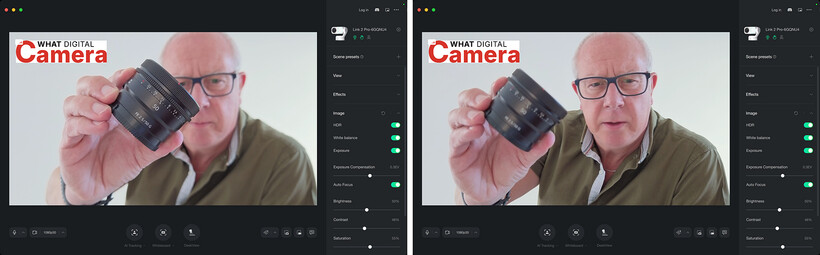
The dual native ISO settings are remarkably far apart with the lower ISO being 100 and the upper being six stops more sensitive at 3200. The two are used simultaneously it seems to create HDR footage that retains shadow and highlight details in high contrast conditions to create a more tonally sophisticated image. The sensor being used here might be larger than average for a webcam, but many podcasters are competing with streamers using mirrorless cameras and cinema cameras, so getting away from the small-sensor look is a key consideration.
Hardly a surprise given Insta360’s audio division is that the Link 2 Pro is equipped with a pair of microphones that can target the speaker, adjust themselves to pick up the sound of the room or more than one person. Noise reduction also works to isolate a voice or to allow background sounds onto the track.
The camera has a wide angle lens with the equivalent focal length of 24mm on a full frame camera system – so slightly wider than the ‘normal’ lens on most phones. The aperture is fixed at f/1.9 which is wide enough to help in low light situations and to create a natural – rather than software – shallow depth of field when focused at the sort of distance the subject is likely to be from the camera. A 4x digital zoom takes that 24mm to a simulated 96mm – nice for headshots.
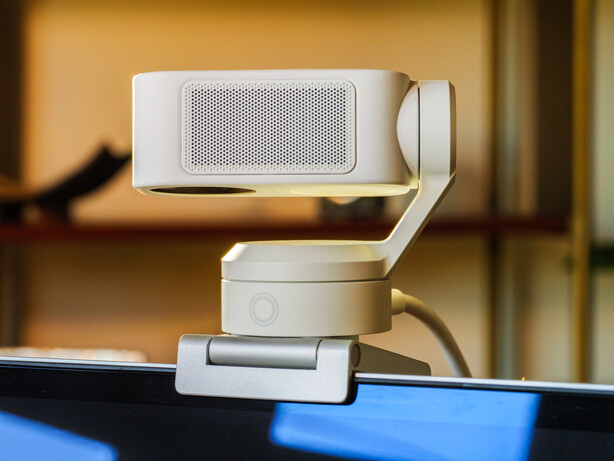
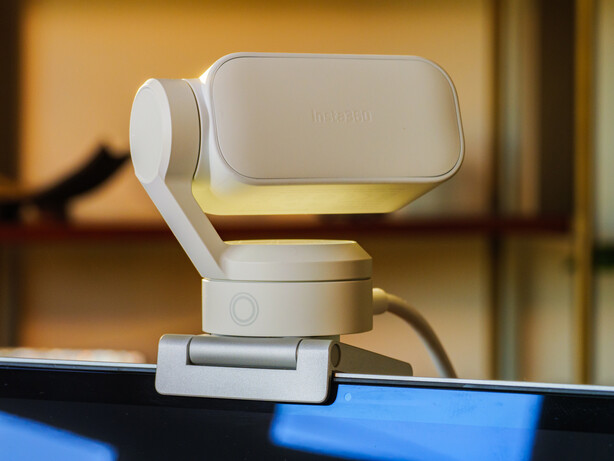
The camera is capable of operating in landscape or portrait orientation, so is good for upright content as well. In either orientation we can have 4K video at 24, 25 or 30fps, and 1080 HD footage at up to 60fps, with video encoded to H.264 in landscape orientation and anything less than 4K/1080 60fps in portrait mode. All other modes will be straight MJPEG. We can adjust exposure by +/-3EV, opt for white balance settings between 2000-10,000K and make use of automatic/manual shutter speeds of between 1/30sec and 1/8000sec – for indoor and outdoor shooting.
Insta360 Link 2 Pro In Use
Having never used an Insta360 webcam before, I found it took me only a couple of hours to get it set up, get the software downloaded and then to find my way around all the controls and features. It takes a bit of concentration, but working down the menu system and opening everything as well as the settings menu will reveal all there is to know in one session. It’s well designed and mostly self-explanatory. There’s a decent amount of control of the camera, the speed of tracking, and we have quite a lot of say over the way the image looks too, with exposure, white balance and contrast adjustments. There are pre-set looks under the Filters tab, and automated make-up applications that I can see are effective even if they look pretty frightening on me.
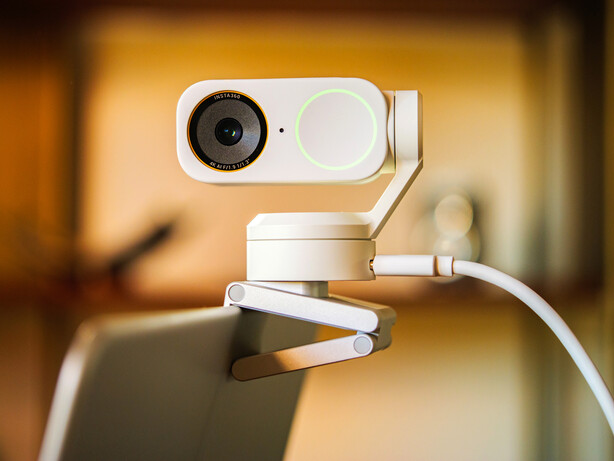
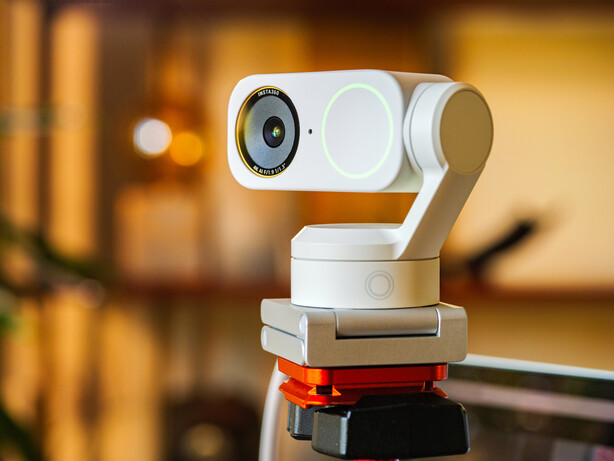
Recording, screen shots, adding graphics, controlling the camera and streaming out to video conferencing applications are all pretty easy to do. I felt there’s a good balance between automation for those who don’t want to spend time getting to know the software, and control for those who do.
Having read that there is a portrait orientation mode I rather assumed this would crop an upright slice from the centre of the landscape orientation picture, as there aren’t enough hinges on the gimbal to flip the camera. In fact though we do actually need to turn the camera on its side, otherwise the camera turns us on our side. We do indeed get a 9:16 image for our socials, but it requires a tripod head to make it happen. Our 4K landscape mode footage has a height of 2160 pixels, so taking an upright FHD slice should have been easy.
Something I looked for but didn’t find is a Home button for the camera that I could hit and have the camera come back to its starting position. We can manually pan and tilt the camera using the onscreen controls, a mouse or the app on a phone, but there can be a bit slow when you want to bring the camera back round to the base position – particularly after it has lost you during a tracking sequence.
Insta360 Link 2 Pro Performance
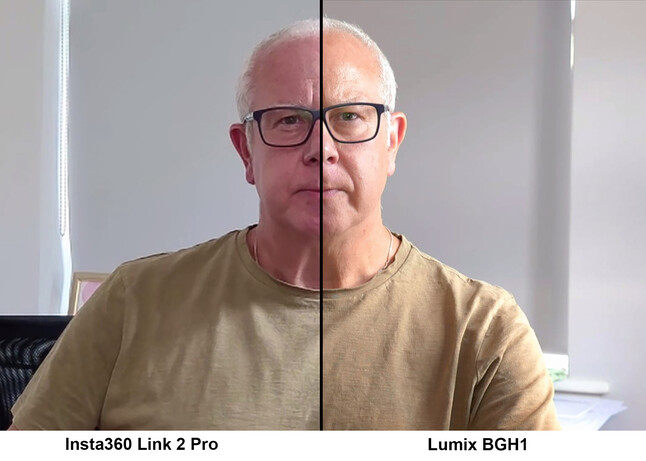
Insta360’s claim that we’ll get ‘DSLR quality in a webcam’ are somewhat hopeful. I suppose the company doesn’t mention which DSLR it is referring to, but even the earliest video-capable DSLRs I think would produce a better-looking image than the Link 2 Pro. It’s a bit of a silly claim. The picture quality of the Insta360 Link 2 Pro is indeed much better than we’d get from most built-in webcams housed in laptops and, in the right conditions, it can produce quite nice footage so long as you’re not planning to look at it to closely. Webcams are primarily for video calls of course, and this one will impress your friends, but if you were hoping to record video to play outside of a conferencing situation I’m not convinced this camera is really good enough.
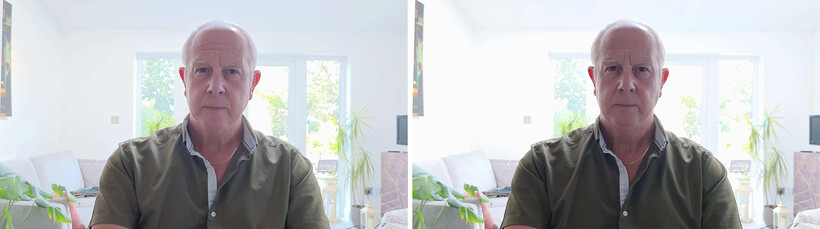
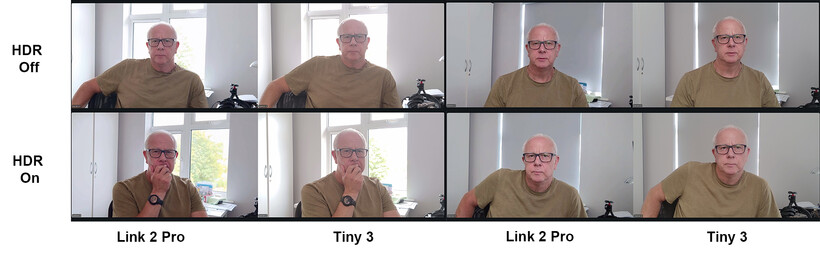
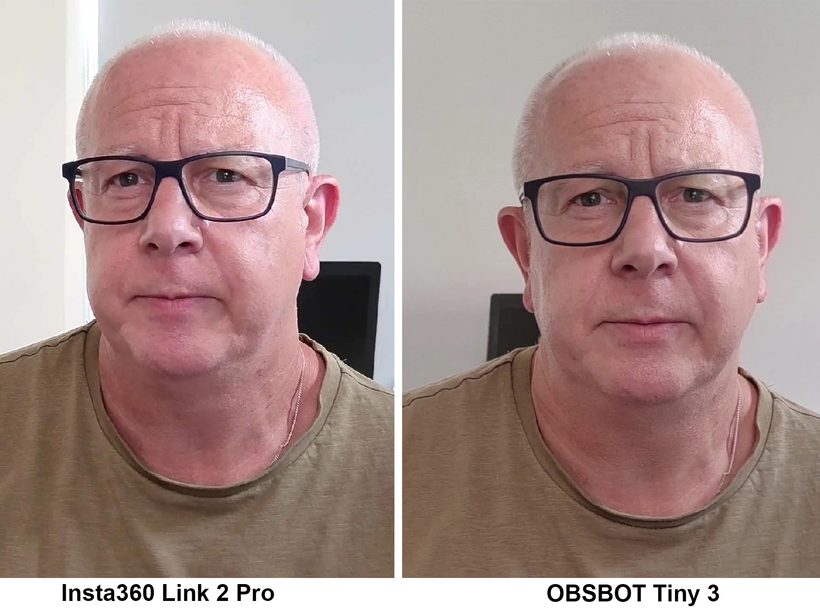
Indoors in domestic lighting I found the videos a bit too pixelated and noisy for recording instead of just streaming. I wondered if switching from 4K to FHD would give the camera a bit of a break but found the image not noticeably different from the higher-resolution picture. There seems no advantage in shooting 4K, as the footage doesn’t look better and the fact that the footage contains more pixels doesn’t automatically mean it contains more detail. Recorded footage is compressed dramatically and is quite over-sharpened to the cost of fine detail and smooth tonal transitions. I compared the footage directly with the, admittedly slightly more expensive, OBSBOT Tiny 3, and the Link 2 Pro footage has less fine detail, more moiré and feels a bit crunchy. The only area in which it was better is in the control of tonal transitions when there are extremely bright areas in the scene.
This crispiness isn’t helped by the fact that we need to rely a little more on the digital zoom, given the very wide 24mm equivalent lens. If you have just one head speaking to the camera 24mm will show the whole room, so naturally you’ll want to zoom in a bit – probably by 2x to bring the ‘focal length’ closer to a normal 50mm. The digital zoom doesn’t actually zoom at all, it just crops the image, so all those imperfections get magnified. In bright light this is fine, but indoors in dimmer conditions the noise and noise-reduction begins to show. And once you’ve been through the extra compression of Zoom and the likes, what might have been a minor deficiency becomes exaggerated by the time the viewer gets to see the image. I had hoped that I would be able to use the image controls to adjust for better technical quality, but sliding the Sharpen control to the left just makes the picture unsharp rather than reducing the ‘sharpness’.
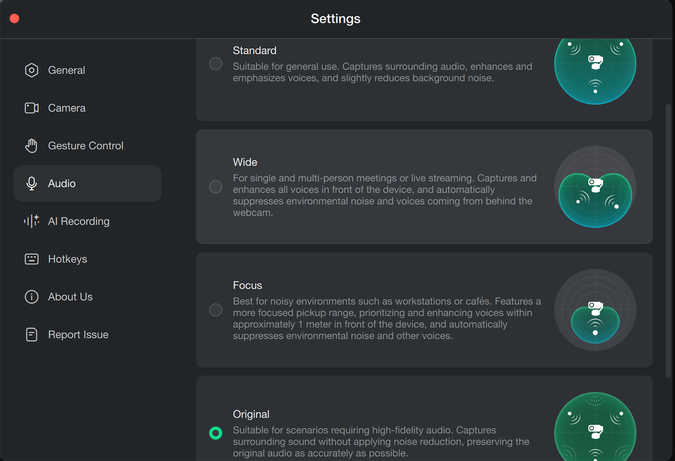
I am currently reviewing a set of wireless microphones from Insta360 so had high hopes for the audio quality of this camera, but found the noise cancellation so overwhelming that in some situations whole words went missing. The Audio Modes are promoted as adjusting the direction of the microphones, but actually what is adjusted is the strength of the noise cancellation, so in Focus Mode all background sounds are eliminated – along with a good deal of the speech of the subject. Wide Mode eases off a bit but still damages the speech, while Standard Mode finds a bit more of a balance. In each of the noise-cancelling modes my voice sounds quite robotic, while in the Original Mode we need to be quite close to avoid sounding distant – which rather dampened my enjoyment of the digital zoom. If you want good audio it will pay to invest in separate mic to clip closer to your mouth.
The follow/tracking function works well in most cases, but when it loses you it seems to make no attempt to find you again and the Tracking button in the software turns off. I found I was using the ‘reset’ button more often than I expected, but most users probably won’t be moving around quite as much as I was during this review. You can of course just turn the camera with your hand, but that isn’t always ideal. It would also be good to have the means to reframe ourselves in the composition, so that we don’t always get tracked right in the middle of the frame. You can adjust while tracking is on, but the adjustment doesn’t seem to stick when you walk around. In comparison the OBSBOT Tiny 3 tracked me much more consistently, and allows reframing that sticks wherever you move.
Insta3600 Link 2 Pro Verdict
Having seen lots of ‘the best just got better’ and ‘this is as good as a professional camera’ review headlines before I took this webcam out of the box I had rather high hopes for image quality, and assumed the new software features would just be the icing on the cake. The new software features are very good, nicely implemented and genuinely useful, but the image quality doesn’t quite live up to the hype, and the unnecessary ferocity of the audio noise cancellation lets this camera down. The Link 2 Pro is actually very nice as a webcam, and is very likely better than the majority of webcams on the market, but it isn’t the best webcam I’ve used and it certainly doesn’t compete with ‘professional’ cameras in any way at all. It probably isn’t the sensor that is at fault here, but the compression, the sharpening and the way noise is dealt with that creates a crispy, pixelated image that lacks proper detail.
The audio is just as disappointing, and for all the technology and work that has gone into it the noise cancellation is just overdone to the point of clipping words and even removing entire words in some cases. The Original audio is fine, just we sound as distant as we are. An additional wireless mic will make a dramatic difference. It’s a shame perhaps that the webcam isn’t able to connection directly with the company’s own wireless microphones. We can plug an RX unit into the laptop or computer of course, but having the direct feed into the camera and then recording straight to the sound track of the footage would be a much neater and more convenient solution.
This is a well featured webcam, there’s no doubt, and for video chat and live streams it will be fine, and the new modes will be useful. But if you are looking for high quality for recording or streams that look professional this model isn’t quite there. despite the company’s claims. In good light and in a quite room you’ll get very nice results with only minimal tonal and audio compression, but normal room lighting and background noise degrade performance significantly.
Insta360 Link 2 Pro Specification
| Insta360 Link 2 Pro | |
|---|---|
| Sensor size | 1/1.3in |
| Video Resolution | Up 4K 30fps/1080p 60fps |
| ISO | Dual Native 100 and 3200 |
| Shutter Speed | 1/30-1/8000sec |
| White Balance | 2000-10,000K |
| Lens | 24mm (equiv) f/1.9 4x digital zoom |
| Gimbal | 2-axis |
| Connectivity | USB-C, comes with type A adapter |
| Dimensions | 71.3×58.9x38mm |
| Weight | 167.5g with magnetic mount |
For more information see the Insta360 website