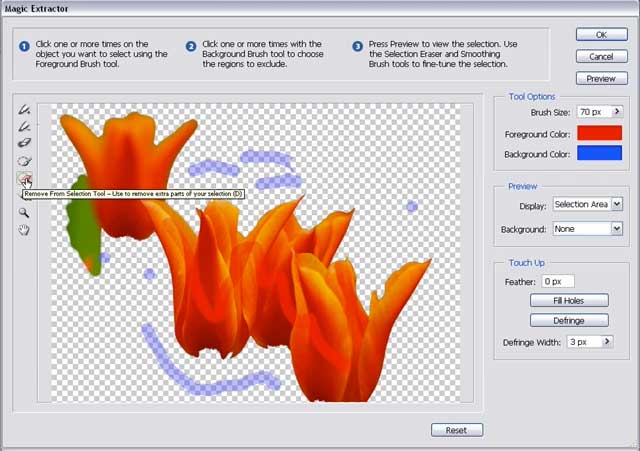
Adobe Photoshop Elements 4: Using the Magic Extractor
Philip Andrews explains how to use the Magic Extractor in Adobe Photoshop Elements 4

Philip Andrews explains how to use the Magic Extractor in Adobe Photoshop Elements 4
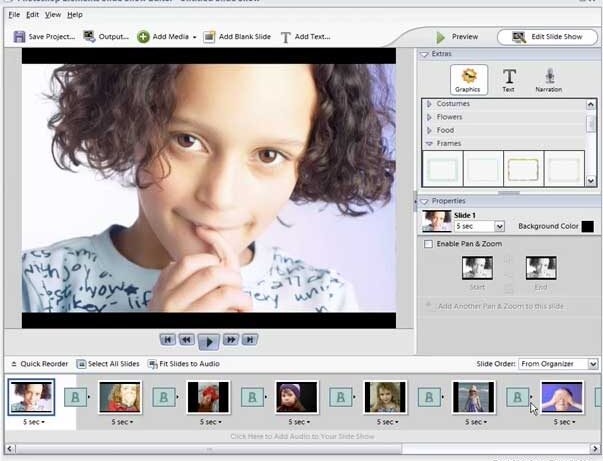
Philip Andrews shows how to create slideshows in Elements 4
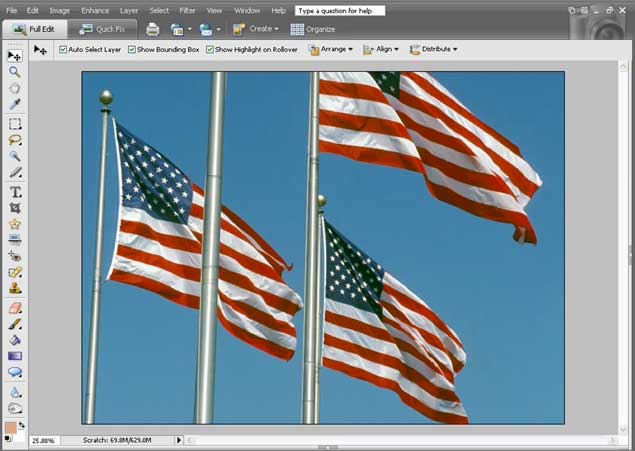
Philip Andrews demystifies the dark art of sharpening, using Adobe Photoshop Elements 5
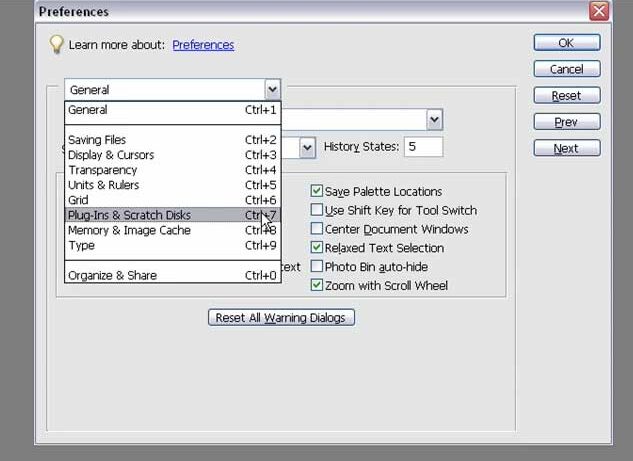
Philip Andrews shows how to set up a scratch disk using Adobe Photoshop Elements 5
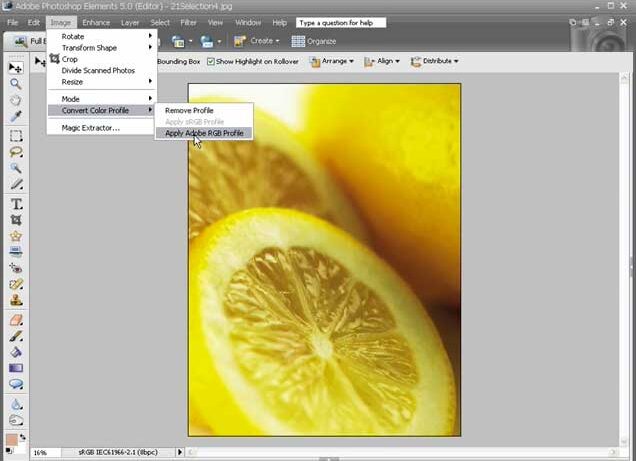
Philip Andrews explains how to set up a colour managed workflow using Adobe Photoshop Elements 5
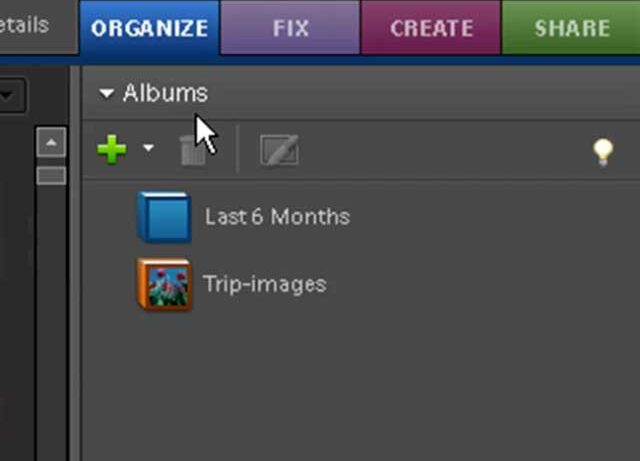
Philip Andrews shows how to create and manage Smart Albums using Adobe Photoshop Elements 6
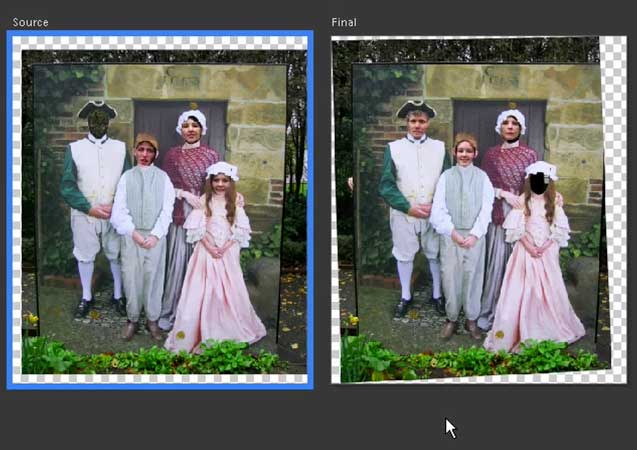
Philip Andrews looks at the Photomerge Group Shot feature in Adobe Photoshop Elements 6
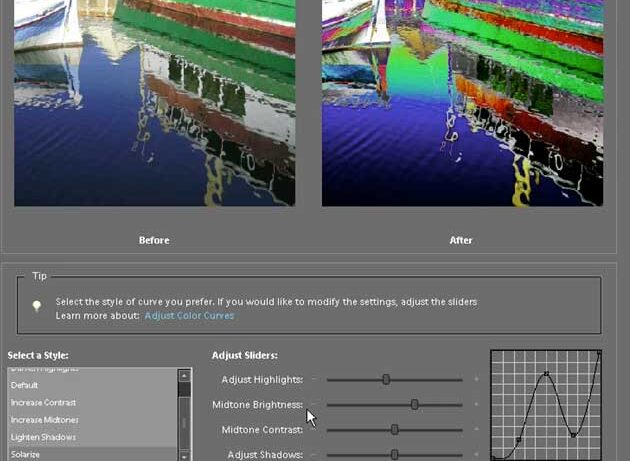
Philip Andrews shows how to use the Colour Curves feature in Adobe Photoshop Elements 6
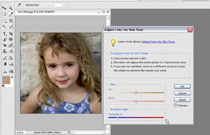
Philip Andrews demonstrates how to adjust skin tone
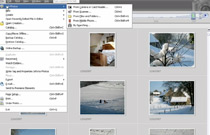
Philip Andrews Shows You How to Import Photos
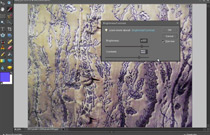
Philip Andrews takes a look at Brightness and Contrast Changes
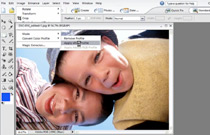
Philip Andrews takes a look at the colour Options in Photoshop Elements 4
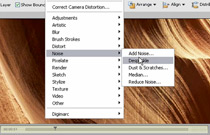
Philip Andrews takes a look at Adding Texture in Adobe Photoshop Elements 5
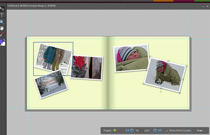
Philip Andrews takes a look at 'Photo Books' in Adobe Elements 6
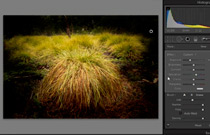
Philip Andrews Demonstrates how to Dodge and Burn Using Adobe Photoshop CS4
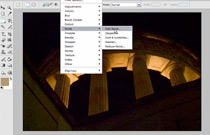
Philip Andrews describes Jpeg Artifacts in Adobe Photoshop Elements 4
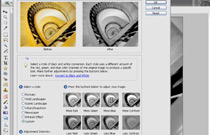
Philip Andrews takes a look at Black and White Conversions in Adobe Photoshop Elements 5
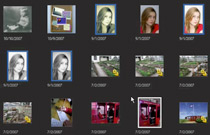
Philip Andrews Explains Quick Copying to CD and DVD using Adobe Photoshop Elements 6