

Custom Functions
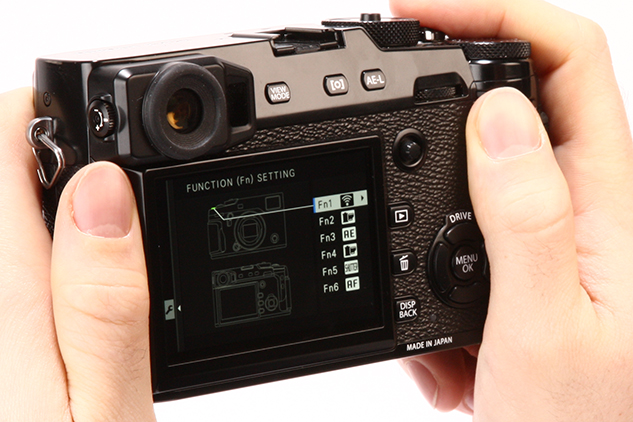

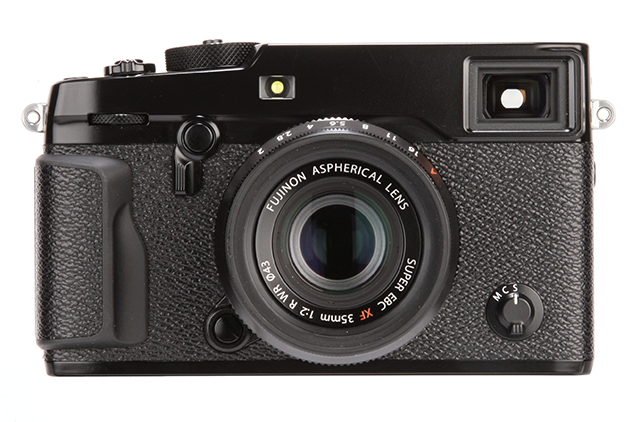
There will be some who pick up the X-Pro2 and feel happy using it straight out of the box, whereas others will want to customise it in a particular way that suits the manner in which they like to work. With no fewer than six custom function buttons (four more than the X-Pro1) dotted across the body and a total of 32 custom settings that can be changed in the quick menu, there’s no shortage of customisation control. Function button settings can be changed from the main menu or, just like the X-Pro1, it’s possible to reassign a function button by holding down the Fn button for longer than three seconds. On the X-Pro2 this will load up 25 options to choose from, which is ten more than the X-Pro1.
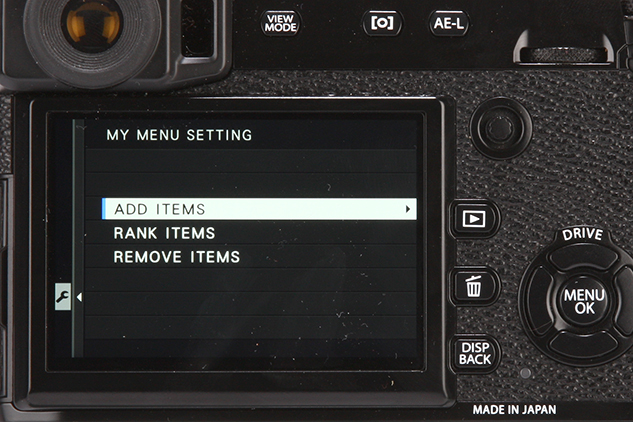
Scrolling down the left side of the menu, you’ll also notice the X-Pro2 introduces a new menu item labelled MY, which stands for My Menu. To access this, you’re first required to go into the setup menu and user settings before selecting the My Menu setting. From here you can add and rank different menu items that you use most into one single page to create your personalised menu. It adds yet another string to the X-Pro2’s bow.