


Nikon has released firmware version 2.01 for the Z6 III, and also expands focus limiter support to eight Nikkor Z lenses and fixes several problems affecting exposure, autofocus and continuous shooting. Alongside the camera firmware, Nikon has updated its NX Tether software to version 2.6.1, adding support for the Z5IIC and extending tethered shooting functions to several other cameras.
Nikon Z6 III firmware 2.01 improves remote shooting
Z6 III owners can now use Pre-Release Capture with compatible Bluetooth remote controllers. The feature records images before the shutter is fully pressed, helping photographers capture unpredictable moments that might otherwise be missed. Being able to operate it remotely could be particularly useful for wildlife and action photography, where a camera may be mounted on a tripod or positioned away from the photographer. Pre-Release Capture was already supported by the Z6 III, so the firmware expands how photographers can operate the feature rather than introducing an entirely new shooting mode.
Firmware 2.01 also extends support for the camera’s focus limiter settings, which allow photographers to restrict the distance range over which autofocus operates. This can help prevent unnecessary focus hunting when photographing subjects within a known distance range, although its usefulness depends on the lens and shooting conditions. The following eight Nikkor Z lenses are newly supported:
- Nikkor Z DX 16-50mm f/3.5-6.3 VR
- Nikkor Z DX 18-140mm f/3.5-6.3 VR
- Nikkor Z DX 50-250mm f/4.5-6.3 VR
- Nikkor Z 24-200mm f/4-6.3 VR
- Nikkor Z 24-50mm f/4-6.3
- Nikkor Z 14-24mm f/2.8 S
- Nikkor Z 24-70mm f/4 S
- Nikkor Z 14-30mm f/4 S
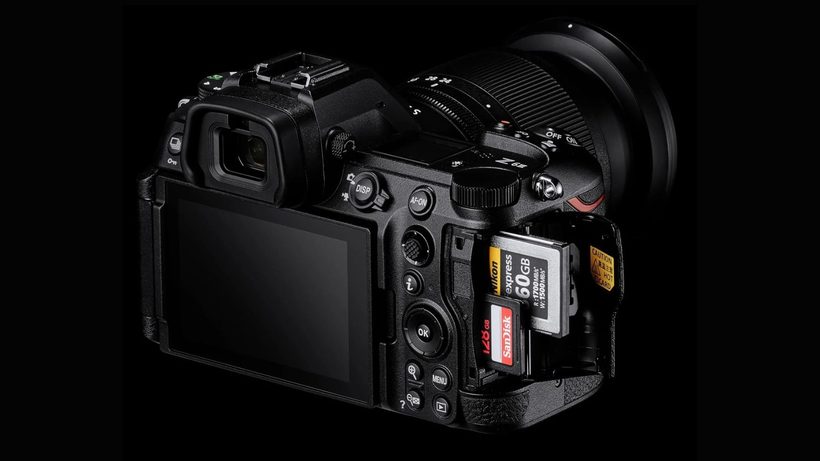
Nikon has also addressed several issues affecting shooting reliability, including problems that could interrupt continuous shooting or produce inconsistent exposure. The fixes cover:
- Photographs occasionally being overexposed during continuous shooting in manual exposure mode.
- Unstable exposure during burst shooting with certain F-mount type E lenses.
- The camera sometimes becoming unresponsive during continuous shooting.
- Autofocus occasionally failing when FV lock is used with an attached flash.
- Pixel Shift Shooting failing to capture the required number of photographs when a non-CPU lens is attached.
- The camera becoming unresponsive when magnifying or reducing the live view display with a manual-focus lens and subject detection enabled.
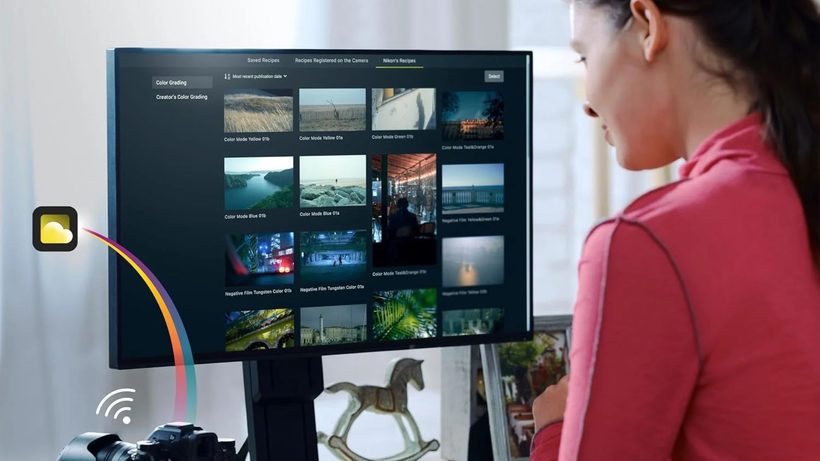
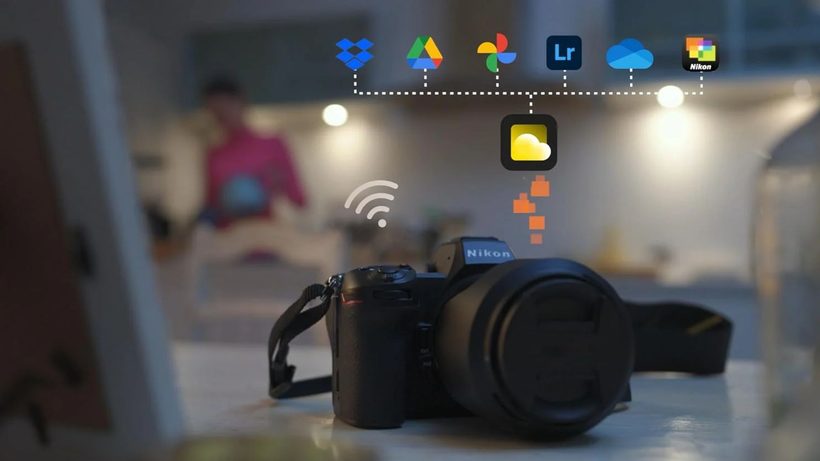
The update also corrects some Custom Settings menu item numbers and changes the names of two Picture Control functions. ‘Cloud Picture Control’ is now called ‘Imaging Recipe’, while ‘Add Cloud Picture Control files’ has been renamed ‘Download Imaging Recipes’. These are terminology changes rather than newly introduced Picture Control features.
Nikon NX Tether 2.6.1 expands camera compatibility
Nikon has also released version 2.6.1 of NX Tether, its software for controlling compatible cameras from a Windows or macOS computer. Tethered shooting is particularly useful for studio and product photography, allowing photographers to operate the camera and review images on a larger display without relying solely on its rear screen. The update introduces several improvements, although the available functions depend on the connected camera and its installed firmware.
The main changes include:
- Nikon Z5IIC: Support for the camera has been added to NX Tether.
- Nikon ZR, Z5IIC and Zf: Imaging Recipes registered in the camera can now be selected through the Picture Control settings in NX Tether.
- Nikon ZR: The R3D NE 12-bit video file format is now available in automatic mode.
- Nikon Z5 II and Z50 II: The colour indicating an in-focus autofocus point in NX Tether now matches the camera’s own display.
- Nikon Z50 II and Z30: Live view support has been added, allowing photographers to monitor their composition through the software.
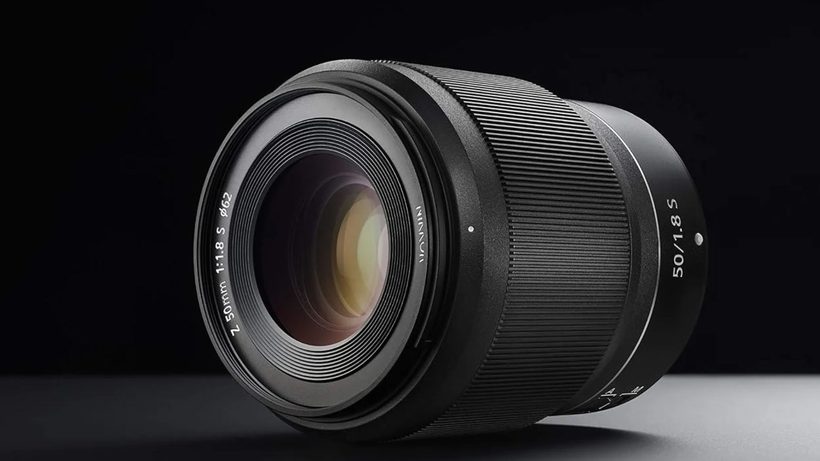
These additions expand the functions available to photographers working with Nikon’s tethering software, particularly those using the Z50 II and Z30, which now support live view. The Imaging Recipe integration also makes it possible to select registered Picture Control looks directly from NX Tether on supported cameras. Nikon specifies that the relevant cameras must be updated to their latest firmware versions to use these features.
How to download the Nikon updates
Both updates are available through Nikon’s official Download Centre. Z6 III firmware version 2.01 includes changes from previous releases, so photographers do not need to install earlier updates separately. Nikon advises users to check the camera’s existing firmware version in the Setup Menu before downloading and installing the new release.
The company also provides an important installation warning: Z6 III owners should not update the firmware with third-party lenses or unsupported mount adapters attached, as doing so could cause the camera to malfunction. Nikon specifies that only Z-mount Nikkor lenses or FTZ and FTZ II mount adapters should remain attached during the process. A computer and card reader are required for the camera firmware installation.
The Nikon Z6 III firmware 2.01 and NX Tether 2.6.1 downloads are available from Nikon’s website, together with installation instructions and compatibility information.
Press release
Z6III Firmware
This software update program is for the customer-owned product listed above (the “affected product”), and is provided only on acceptance of the agreement listed below. By selecting “Accept” and clicking “Download”, you are held to have accepted the terms and conditions of the agreement. Be sure you understand the terms of the agreement before beginning download.
This service supplies software that can be used to update the Z6III camera “C” firmware to version 2.01. Before proceeding, select [Firmware version] in the camera [SETUP MENU] and check the camera firmware version. You will not need to download or install this update if the firmware listed above is already installed. This update includes all changes made in previous updates. A card reader and computer are required for the firmware update. Read the information below before proceeding.
NX Tether
This software update program is for the customer-owned product listed above (the “affected product”), and is provided only on acceptance of the agreement listed below. By selecting “Accept” and clicking “Download”, you are held to have accepted the terms and conditions of the agreement. Be sure you understand the terms of the agreement before beginning download.
About NX Tether
NX Tether software is designed for tethered photography with Nikon cameras connected to your computer. NX Tether can be used to adjust camera settings from and download pictures to the computer, where it can link with other software such as NX Studio. A simple, stripped-down design combined with an uncluttered, intuitive interface ensures that users will never find themselves at a loss.
Notices
• This software is distributed as a file named “S-NXTETH-020601WF-ALLIN-ALL___.exe”. Download and run the file to perform the update. When performing the update, log in to an account with administrator privileges. Before launching the installer, exit any other applications that may be running, including anti-virus software. Read the information below before proceeding.
Product Description
| Name | NX Tether Version 2.6.1 |
|---|---|
| File name | S-NXTETH-020601WF-ALLIN-ALL___.exe |
| Copyright | Nikon Corporation |
| Archive type | Self-extracting |
| Reproduction | Not permitted |
| System requirements | |
| Operating system | Microsoft Windows 11 Note: Pre-installed 64-bit editions only. |
| CPU | 1 GHz or better Intel processors |
| RAM | 4 GB or more |
| Hard disk space | A minimum of 500 MB available on the start-up disk (1 GB or more recommended) |
| Monitor | Resolution: 1920 × 1080 pixels or moreColors: 24-bit color (True Color) or more |
| Interface | Built-in USB port required. May not function as expected if camera is connected via a USB hub. Users who wish to connect to the camera via built-in Wi-Fi will need the Wireless Transmitter Utility. |
| Supported digital cameras | • The Z9, Z8, Z6III, Z7II, Z6II, Z7, Z6, Z5IIC, Z5II, Z5, Zf, Z50II, Z50, Z30, Zfc, ZR, D6, and D780Note: Some of the above products may not have been announced or released in all countries or regions. |
| Notes | • An internet connection is required to access all features including sign-in with Nikon ID, online help, and update information.• Be sure to sign in with your Nikon ID while you have an internet connection before using NX Tether offline.• You need to sign in online with your Nikon ID again to use NX Tether after using it offline for more than 30 days.• NX Tether may not function as expected if used simultaneously with Camera Control Pro 2, Nikon Transfer 2, or other software designed to control or download pictures from cameras connected to the computer. Exit Camera Control Pro 2 and Nikon Transfer 2 before launching NX Tether.• Loading a settings file created with high-frequency flicker reduction enabled on the camera may result in shutter speed being set to a value different from that stored in the settings file. |
Changes from Version 2.5.0 to 2.6.1
Tether Profile Version 13.0
- Added support for the Z5IIC.
- Imaging Recipe selection is now available for the Picture Control item in the shooting settings pane when connecting to a camera with Imaging Recipes registered.
- The “R3D NE 12-bit (R3D)” video file type is now also available in auto mode.
- The in-focus focus point color displayed in NX Tether when using autofocus now matches that used in the camera.
- More cameras now support live view.
- 1 Available with ZR, Z5IIC, and Zf. Be sure to update the camera firmware to the latest version.
- 2 Available with ZR. Be sure to update the camera firmware to the latest version.
- 3 Available with Z5II and Z50II. Be sure to update the camera firmware to the latest version.
- 4 Now available with Z50II and Z30. Be sure to update the camera firmware to the latest version.
Installation
- Create a folder on the hard disk and name it as desired.
- Download S-NXTETH-020601WF-ALLIN-ALL___.exe to the folder created in Step 1.
- Run S-NXTETH-020601WF-ALLIN-ALL___.exe to launch the installer.
- Follow the on-screen instructions to complete installation.